
Overview
Build Helldivers 2 mod packs in Arsenal 0.36 and later.
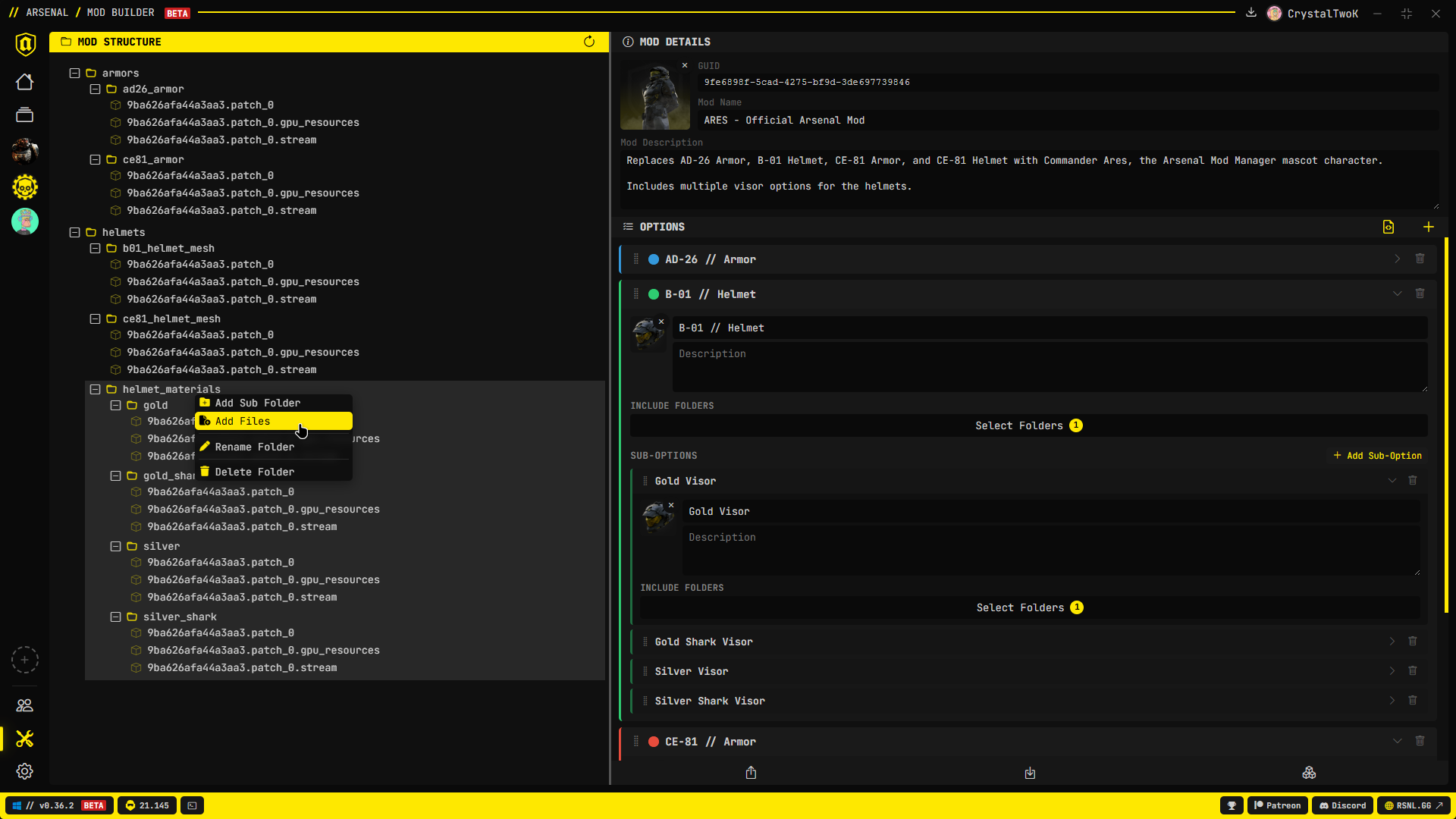
The Mod Builder is Arsenal's editor for packaging patch files into a mod pack with a valid manifest.json. Open it from the sidebar (the Dev / Mod Builder button). The navbar title is MOD BUILDER and currently shows a BETA badge.
Who this is for
This section is for assembling and publishing a mod pack that Arsenal (and Helldivers 2 Mod Manager) can import. Creating the actual game assets (textures, models, animations) is covered by the Helldivers 2 Modding Wiki.
Version
This Mod Builder ships in Arsenal 0.36 and later. For the folder-as-option editor in 0.30.2 and earlier, switch to Legacy in the sidebar version menu, or open Mod Builder (Legacy).
What changed from the legacy builder
The new editor splits files from options. Folders are no longer options. You build a folder tree, then map those folders onto options with Include Folders.
| Topic | Legacy (0.30.2 and earlier) | Current (0.36 and later) |
|---|---|---|
| Folders | Each folder is an option or sub-option | Folders are only a file tree. Nesting can go as deep as you need |
| Options | Derived from the folder tree | Edited in a separate OPTIONS panel |
| Manifest | Live JSON editor on the right | Form fields plus a read-only Preview Manifest dialog |
| Icon | Context menu Set Mod Icon | Thumbnail in MOD DETAILS |
| Option images | Context menu on folders | Thumbnail on each option / sub-option card |
| Project file | .hd2a_project (metadata v1) | .hd2a_project (metadata version 2). v1 projects still import |
| Build output | Mod pack folder | .zip archive with the tree plus manifest.json |
Interface layout
Two resizable panels, split by a vertical grip.
Left: MOD STRUCTURE
The file explorer for this project. An empty project shows No files yet and tells you to right-click to add folders and files.
| Item | Role |
|---|---|
| Folders | Organize files. Names become include paths when you map them to options |
| Nested folders | Allowed at any depth. Paths use /, for example Weapons/Gold |
| Root files | Files not inside a folder. These are always part of the pack (typical for always-on patches) |
| Collapse | Click a folder row (not the name field) to expand or collapse it |
The New Project button (refresh icon) in this header resets the builder after a confirmation dialog.
Right: MOD DETAILS and OPTIONS
MOD DETAILS is the pack identity:
| Field | Limit | Notes |
|---|---|---|
| Icon | Image file | Click the thumbnail to choose one. The X removes it. Formats: PNG, JPEG, GIF, WebP |
| GUID | 36 characters | Auto-generated UUID. Changing it makes Arsenal treat the pack as a different mod |
| Mod Name | 120 characters | Display name in the Library |
| Mod Description | None | Can be empty. The field itself must exist in the manifest |
Default values for a new project:
| Field | Default |
|---|---|
| Name | New Helldivers 2 Mod |
| Description | A Helldivers 2 Mod made with HD2 Arsenal - RSNL.GG |
| GUID | A new UUID |
OPTIONS is a list of option cards. See Options. When the list is empty, the panel shows No options yet.
The OPTIONS header has:
| Button | Action |
|---|---|
| Preview Manifest | Opens a read-only JSON preview of the cleaned V1 manifest |
Add Option (+) | Creates a new option card |
Bottom of the right panel
| Button | Tooltip | Action |
|---|---|---|
| Export | Export as HD2 Arsenal Project | Save a .hd2a_project file |
| Import | Import a HD2 Arsenal Project | Load a .hd2a_project file |
| Build | Build Mod Pack | Validate, then write a .zip |
Details are on Projects and build.
Context menus
Right-click in the file explorer.
On the explorer background:
- Add Folder
- Add Files
There is no Set Mod Icon or Set Option Image on the tree. Icons live on MOD DETAILS and on option cards.
Folder names
| Rule | Value |
|---|---|
| Maximum length | 29 characters in the rename field |
| Allowed characters | Letters, numbers, space, hyphen, underscore, period, parentheses |
| Cannot start or end with | Space, period, hyphen, or underscore |
| Unicode | Not allowed |
| Uniqueness | Duplicate names among siblings get a suffix such as New Folder (1) |
Invalid characters are stripped while you type a new name. Press Enter to confirm, Escape to cancel.
Renaming or deleting a folder also updates every option that included that path (or a nested path under it).
Files you can add
Add Files accepts:
| Kind | Extensions |
|---|---|
| Patch set | .patch_N, .patch_N.gpu_resources, .patch_N.stream |
| Images | .png, .jpg, .jpeg, .gif |
Option and mod thumbnails use a dedicated image picker (PNG, JPEG, GIF, WebP).